
How to Make a Person in a Photo Look Younger with AI
A practical guide to de-aging a portrait with the right source photo, target age, prompt, and review steps.
Quick answer: use a clear portrait, a modest age target, and a review pass
The simplest way to make a person in a photo look younger is to upload one clear portrait to an AI de-aging tool, choose a younger target age, generate the edit, and compare it with the original. A prompt-based editor can give you more control over hair, lighting, clothing, and expression, while manual retouching is useful when you need to guide every small change.
Treat the result as a creative simulation, not a literal reconstruction of the past. One photo cannot reveal how a person really looked at another age, and an AI model may change identity, texture, background, or expression along with the requested age direction. The most reliable workflow combines a good source image, a moderate target, a constrained prompt, and an honest identity check.
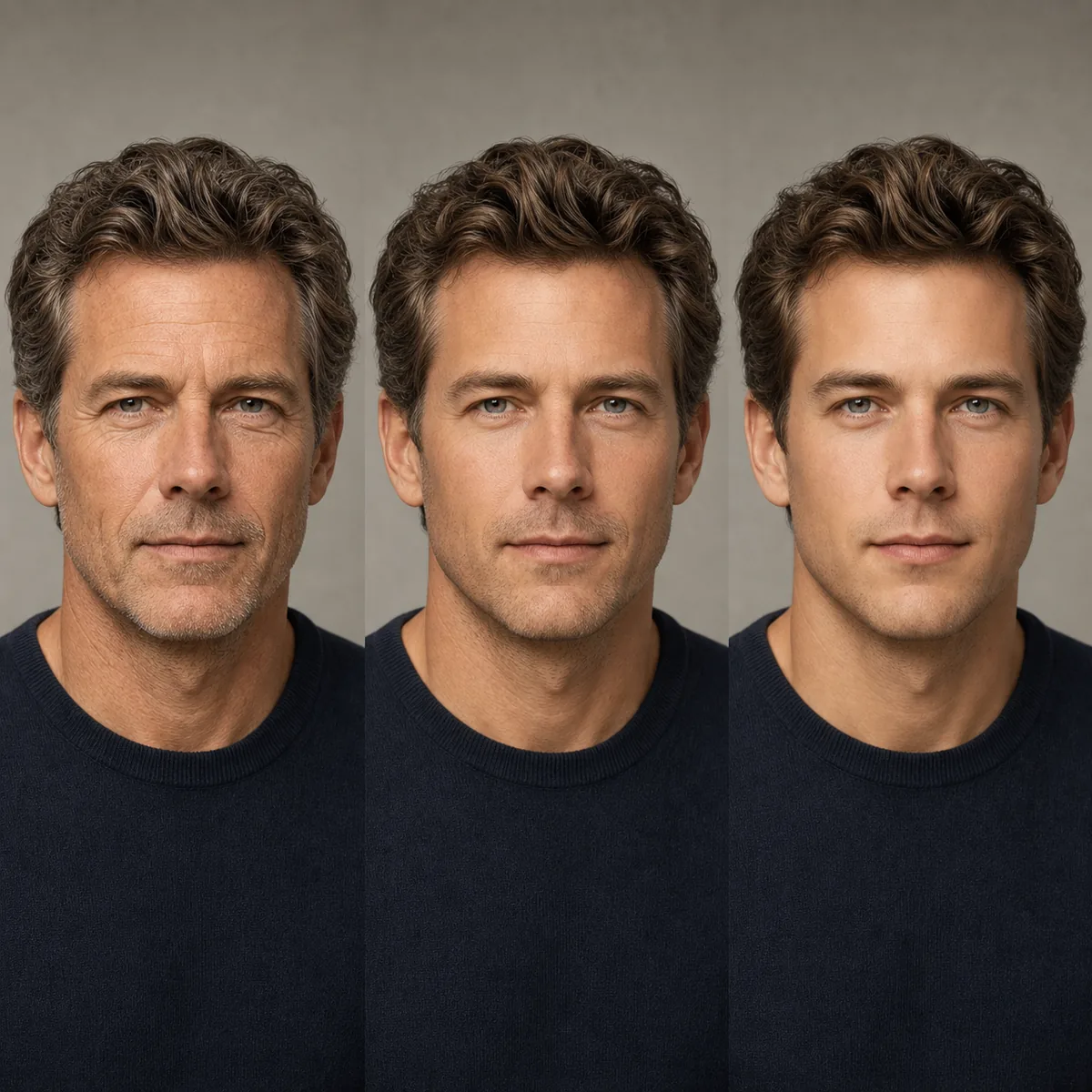
What does AI de-aging change in a photo?
AI de-aging is an image-editing task that moves a portrait toward a selected younger life stage. A model may soften visible lines, adjust skin texture, restore a little facial fullness, change hair tone, and reinterpret shadows around the eyes or mouth. A good edit follows the requested direction without turning the subject into a different person.
The phrase make a photo look younger can describe several levels of editing. A light pass may reduce the appearance of tiredness or harsh texture, while a larger age change can alter facial proportions, hair, clothing, and the background. For a personal or creative project, the goal should be a believable visual concept that is clearly identified as generated rather than a claim about the person’s real appearance.
Identity cues
The eyes, face outline, nose, mouth position, expression, and general proportions should remain recognizable.
Younger cues
The edit may change lines, hair tone, skin texture, facial volume, and shadows that suggest a younger appearance.
Scene drift
Lighting, clothing, background details, and expression can change too, so review them separately from the age effect.
Five practical ways to make a photo look younger
Choose the method based on how much control you need and how quickly you want a result. For most readers, a browser-based de-aging tool is the fastest starting point. If you are building a character reference or a carefully controlled creative composite, a prompt editor or manual workflow may be more useful.
The methods below can be combined. You can create a baseline with a browser tool, compare it with a prompt-based edit, and then use manual retouching for small corrections. Keep the original file and the settings used so you know which changes came from the age edit and which came from later adjustments.
Use a browser AI de-aging tool
Upload a portrait, choose a younger target age, generate the image, and compare the result with the source. This is the most direct path when you want to make a photo look younger without learning a full editing program. A target-age control also lets you test a modest change before trying a dramatic one.
Best for: quick younger-self previews, family projects, and first experiments
Main trade-off: you have less control over individual lines, hair, clothing, and background changes
Use a prompt-based image editor
A prompt-based editor can preserve more of the original composition while giving you instructions about age direction, lighting, hair, clothing, and identity. Start with the source image and ask for a believable younger adult version. Tell the model to preserve the face shape, eye spacing, expression, camera angle, and background, but do not demand an exact historical reconstruction.
Best for: creative direction, character design, and controlled variations
Main trade-off: the editor may reinterpret more than age, and prompt wording cannot guarantee identity preservation
Example prompt
Edit this portrait to show a believable younger adult version, preserve the same identity, face shape, eye spacing, expression, camera angle, clothing, background, and lighting, soften age-related texture naturally, keep realistic skin detail, no text.Use a mobile age-filter workflow
A mobile app is convenient when the source photo is already on your phone and you want to compare several effects quickly. Look for controls that explain the age direction or target instead of relying on a vague smooth-face filter. Export the original and result separately so you can inspect whether the app changed more than the face.
Best for: phone-first experiments and quick sharing
Main trade-off: free access, watermarks, retention rules, and output quality vary between apps
Build the change manually in an editor
Manual retouching gives you the clearest control over small details. You can duplicate the portrait, work on separate layers, and adjust texture, hair tone, contrast, and facial volume gradually. This takes longer, but it is useful when an AI result changes the identity, invents distracting details, or needs to match an existing art direction.
Best for: professional composites, art direction, and precise cleanup
Main trade-off: it requires editing skill and can look artificial when every feature is smoothed uniformly
Compare several younger target ages
Instead of making one large jump, generate a few reasonable younger targets and place them side by side. A sequence reveals whether the face changes gradually or suddenly, and it makes it easier to reject an exaggerated result. It also communicates that an AI de-aging image is one possible interpretation rather than a certain record of the past.
Best for: timelines, presentations, character studies, and before-and-after comparisons
Main trade-off: more generations mean more review time and more chances for small inconsistencies between stages
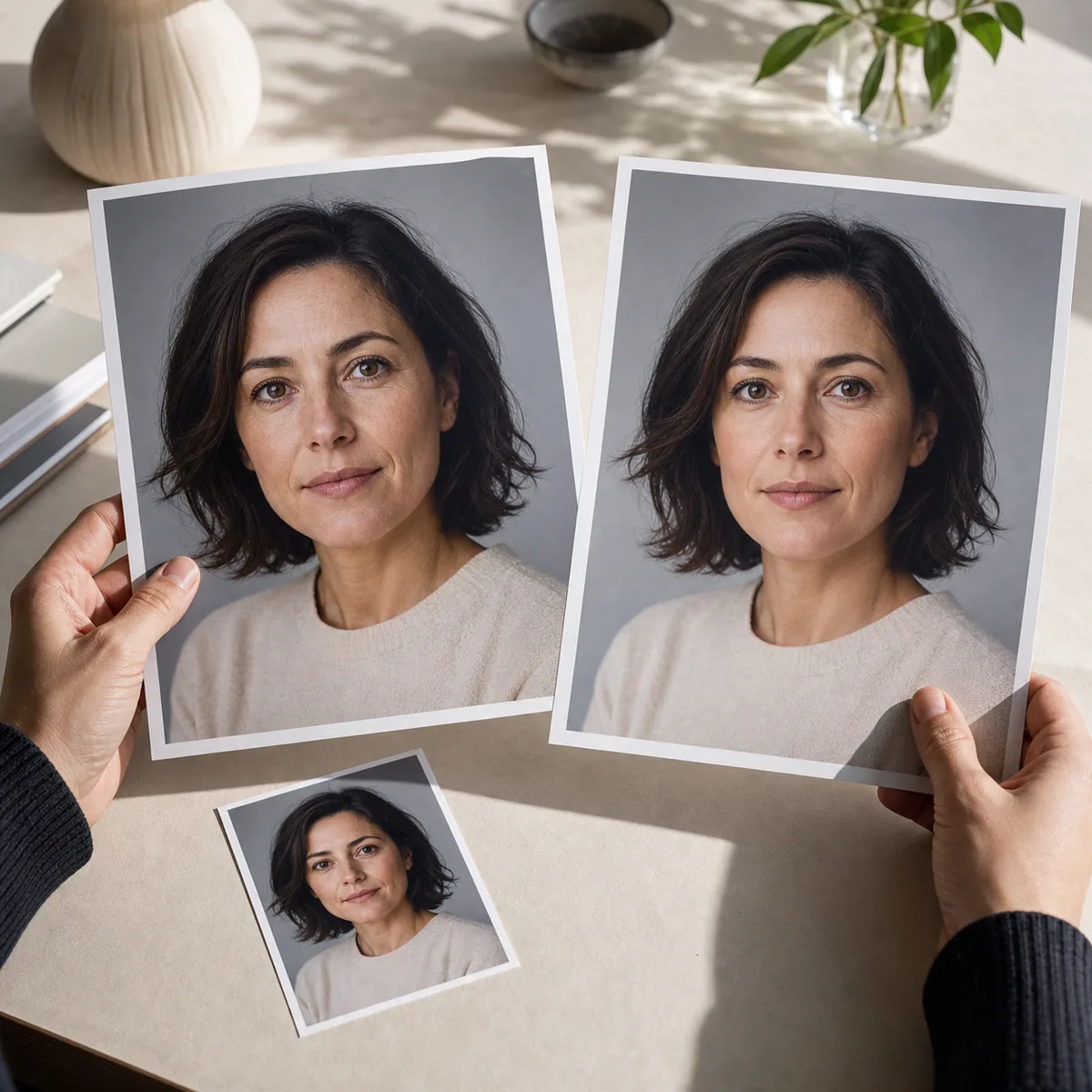
A repeatable five-step de-aging workflow
The method matters less than the review discipline. Use the same source image, record the target age, and compare outputs at the same crop when possible. That keeps the experiment focused on younger-looking changes instead of making every result a different photograph.
For a browser tool, the process is usually upload, choose, generate, compare, and decide. The same sequence works in a prompt editor or a manual workflow, even when the controls have different names.
How to prepare a better source photo
An AI model can only preserve information that is visible in the input. You do not need a studio portrait, but a clear and consistent source reduces the number of details the model has to invent. A sharp photo also makes the before-and-after review more honest because you can see whether texture and shape actually changed.
If the only available image is imperfect, try it once and treat the output as a rough concept. Do not keep increasing prompt strength to compensate for sunglasses, blur, extreme shadows, or a face that is too small in the frame. Replacing the source photo is often more effective than forcing the model to guess.
One visible face
A single subject gives the model a clearer identity target than a group photo or a crowded background.
Front or near-front angle
Visible eyes, nose, mouth, jawline, and forehead give the edit more structure to preserve.
Even lighting
Soft light is easier to interpret than a face split by deep shadow, colored light, or strong backlight.
Useful resolution
Avoid tiny screenshots, extreme compression, or a crop where facial details are only a few pixels wide.
Limited obstruction
Sunglasses, masks, hands, large hats, and heavy beauty filters remove useful age and identity cues.
Permission to edit
Only upload a portrait you own or have permission to modify, especially when the person is not you.
How to tell whether the younger result still looks like the same person
A result can look polished and still be wrong as a reconstruction. Review it as a generated interpretation: does it keep the subject recognizable, and does it apply the younger direction without introducing unrelated changes? If two outputs look different but both are plausible, that is evidence of uncertainty rather than a reason to choose the most dramatic one.
Before sharing, compare the original and generated files at the same size. Check the face first, then the hair, clothing, background, and lighting. If the model changed the setting so much that the age effect is hard to isolate, make a simpler edit or use a cleaner source.
| Review | What to ask | What to do |
|---|---|---|
| Identity | Do the eyes, face outline, expression, and proportions still feel like the same person? | Reject or regenerate if the face becomes a different identity. |
| Younger direction | Are the changes consistent with the requested younger target? | Prefer subtle, coherent cues over a generic smoothing effect. |
| Unrelated drift | Did the hair, clothing, background, or lighting change without being requested? | Use a more constrained prompt or a different source. |
| Communication | Could another person mistake the result for a real historical photo? | Label it as AI-generated or simulated when context could be unclear. |
Privacy, consent, and responsible use
A face photo can be personal information, and a younger-looking edit can still be connected to the original person. Check the service privacy policy before uploading, understand how long files may be retained, and avoid putting someone else’s portrait into an editor without permission. The fact that a tool is free does not tell you how it handles uploads.
Do not use AI de-aging to bypass age checks, impersonate someone, create a misleading record, or make a sensitive decision about a person’s real age. The safest uses are clearly identified creative previews, personal experiments, permitted character concepts, and visual comparisons where the simulation is explained.
Sources and further reading
These references provide context for responsible AI use and privacy. They do not make an AI de-aging result a factual reconstruction of the past.
- NIST AI Risk Management Framework — A primary reference for evaluating AI limitations, trust, and risk.
- Federal Trade Commission: Privacy and Security — General guidance for thinking about personal information and privacy practices.
- AI Age Filter Privacy Policy — Review site-specific information before uploading a personal photo.
How to make a photo look younger with AI FAQ
What is the easiest way to make a person in a photo look younger?
Use a browser-based AI de-aging tool: upload one clear portrait, choose a younger target age, generate the image, and compare it with the original. Start with a moderate change so identity drift is easier to spot.
Can I make my own photo look younger online?
Yes. An online AI age filter can create a younger-looking preview directly in the browser. Check the service’s privacy and retention information first, and treat the result as an edit rather than a real record of how you looked in the past.
What photo works best for an AI de-aging edit?
Use a single, sharp, front-facing or near-front-facing portrait with even light and a visible face. Avoid group photos, sunglasses, masks, heavy filters, deep shadows, and very small or blurry images.
Can AI make someone look exactly 20 years younger?
It can create a visual interpretation of a younger target, but it cannot reconstruct an exact past appearance from one photo. A larger age jump usually increases identity drift and unrelated changes, so compare a few modest targets instead.
What prompt should I use to make a photo look younger with AI?
Describe a believable younger adult version and explicitly preserve identity, face shape, eye spacing, expression, camera angle, lighting, clothing, and background. Ask for natural skin detail and no text, but do not claim that the result will be historically exact.
Is it safe to upload a face photo to an AI age filter?
Safety depends on the service’s handling of uploads, retention, deletion, and access. Read the privacy policy, use a photo you own or have permission to edit, and avoid uploading sensitive portraits when the service terms are unclear.
Continue exploring AI age editing
Ready to try a younger-looking photo?
Use a clear portrait, start with a reasonable target age, and review the result as a creative simulation rather than a promise about the past.
Open De-Age Photo Online